Free Download
The Amazing YouTube Video Editor
AuthorRecommended by the author

SoftwareHow to & Tips

Video FormatsConvert Video

Resources

How to Edit a YouTube Video That Is Not Yours

Author: Kevincy by Kevincy

Updated on Sep 23, 2026

If you have permission to use a video uploaded by someone else, you may want to save a copy and make a few changes before sharing it or keeping it for your own project. This guide shows you how to download an authorized copy and make simple edits with one Windows program.

YouTube Studio offers basic editing for videos you have uploaded, but it cannot edit another creator's video in place. If you have the right to use that video, you can work with a permitted local copy in a third-party editor instead.

The workflow has two parts: first, save the video to your computer when downloading is permitted; then make the edits you need. Once the file is saved, you can import it into the Converter to edit individual videos or join multiple clips.

Before you begin: A video being public on YouTube does not mean it is free to download, edit, or repost. Make sure you have the necessary rights and that downloading complies with YouTube's Terms of Service or applicable law. If a video has a Creative Commons license, follow its conditions, including attribution; simply giving credit does not replace permission.

Part 1: Download a Video You Have Permission to Edit

If you have an authorized YouTube video to edit, you can use the Downloader in WonderFox HD Video Converter Factory Pro to save a local copy, where supported. The same software lets you edit the downloaded file, so you do not need to move between different desktop programs. If the creator has already supplied the original video file, skip this part and import that file directly into the Converter.

First, downloaddownload and install the Windows software.

Free Download Free Download

How to Download the Video in 3 Steps

Download YouTube Video

Step 1. Copy and Analyze the Video URL

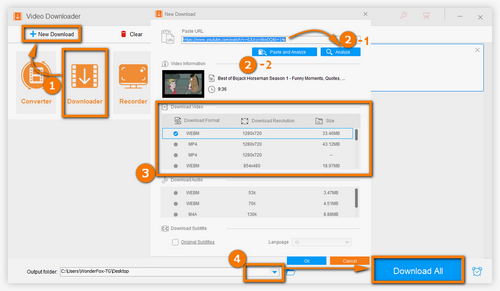
Copy the URL of the video you are permitted to download. Open the software and select “Downloader” > “New Download.” Paste the link and click “Analyze,” or use “Paste and Analyze” directly.

Step 2. Choose a Video Format and Resolution

If the video is available for downloading, select a suitable option under the “Download Video” tab. Choose a resolution that meets your editing needs, then click “OK” to add the task.

Step 3. Select a Folder and Download

Choose where to save the file and click “Download All.” When it finishes, you can open the downloaded video in the Converter.

Part 2: How to Edit the Downloaded YouTube Videos

After downloading the video, you can do all the basic editing in the same program. Use the editing toolbar below each imported video for individual changes, or use the Merge option at the top when you need to join multiple files.

Free Download Free Download

Edit Your Downloaded Videos in 3 Steps

Import Downloaded Videos into the Converter

Step 1. Import the Downloaded Videos

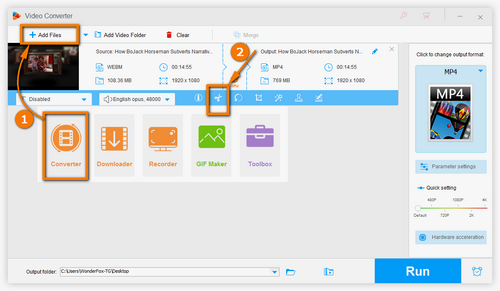
Close the Downloader and open the “Converter” module.

Click “Add Files” or drag and drop your downloaded videos into the window.

Add at least two files if you plan to merge them.

Use the Editing Toolbar to Trim and Edit Each Video

Step 2. Edit Individual Videos or Merge Multiple Files

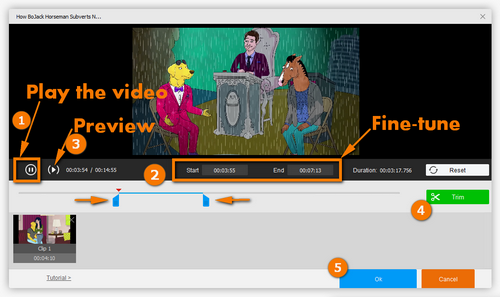
Use the editing toolbar below each video to cut or split clips, rotate or flip the picture, crop unwanted areas, add built-in filters or watermarks, and edit metadata. For example, click the scissors icon to open the trimming window, set the start and end times, click “Trim” to keep the selected section, and repeat if you want several clips from one video. Click “OK” when you are done.

If you want to combine videos, click “Merge” at the top of the Converter (at least two files are required). In the Merge window, add the clips to a pack, arrange them in your preferred order, and confirm the merge. You can edit individual clips before combining them.

Choose Output Format and Export the Edited Videos

Step 3. Choose an Output Format and Export

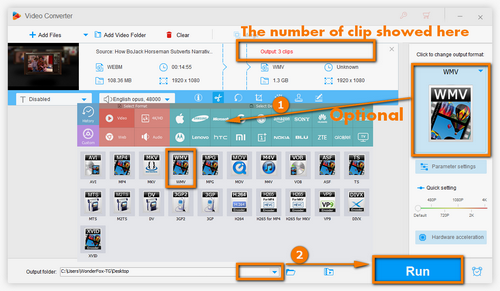
Click the output format image on the right if you need a different format or device preset. Choose a destination folder using the inverted triangle at the bottom, then click “Run” to save your edited video.

FAQs About Editing YouTube Videos

Q1. Can I edit someone else's video directly in YouTube Studio?

No. YouTube Studio's editor works with videos uploaded to your own channel. To edit another creator's footage, you need a copy you are permitted to use and a separate editor. YouTube Studio also does not offer a tool for joining separate uploaded videos.


Q2. Can I edit the downloaded video online instead?

Yes. If you have an authorized file, browser-based editors such as 123apps or Clipchamp provide basic editing options. Check their file limits, export restrictions, and privacy terms before uploading footage.


Q3. What if I want to edit videos on a Mac, iPhone, or iPad?

You can import video files into iMovie, make your edits on the timeline, and export the finished movie. WonderFox HD Video Converter Factory Pro in the main tutorial is for Windows.

At last...

The process is straightforward: save a video you are permitted to use, import it into the Converter, and edit it with the toolbar or merge it with other clips. HD Video Converter Factory Pro handles these basic editing tasks in one Windows program. Before sharing the result, make sure your intended use is covered by the rights you have.

Free Download Free Download


Kevincy

Kevincy Berel

Kevincy joined the WonderFox team in 2014 and has been a senior columnist ever since. With over two decades of experience in the video editing industry, he shares tutorials, tips, and how-to guides on video/audio processing and personal DVD backups. Family-oriented and passionate about helping others, he is dedicated to making video and audio processing easier for readers.

Email

Rip Your Homemade DVD Content for YouTube Uploading

Rip Your Homemade DVD Content for YouTube Uploading

WonderFox DVD Ripper Pro

If you want to share your homemade DVD content with more people on YouTube, you can rip your DVD to digital formats so as to upload to YouTube. WonderFox DVD Ripper Pro is professional in extracting DVDs to more than 300 video formats and devices. Then you can share them with others on websites or enjoy them on your portable devices. Free download it and have a try.

Free Download DVD Ripper Pro Free Download DVD Ripper Pro

More Related Articles

Specific Tutorial of How to Add Music to YouTube Video Legally 5 Best YouTube Video Cutters Online and the Better Desktop Alternative (Free) How to Edit Videos on Windows 11/10
How to Convert Any Video to GIF on Windows, Mac, Mobile, and Online How to Download YouTube Videos easily on Windows? Handy Bulk YouTube Downloaders to Save YouTube Videos/Channels/Playlists